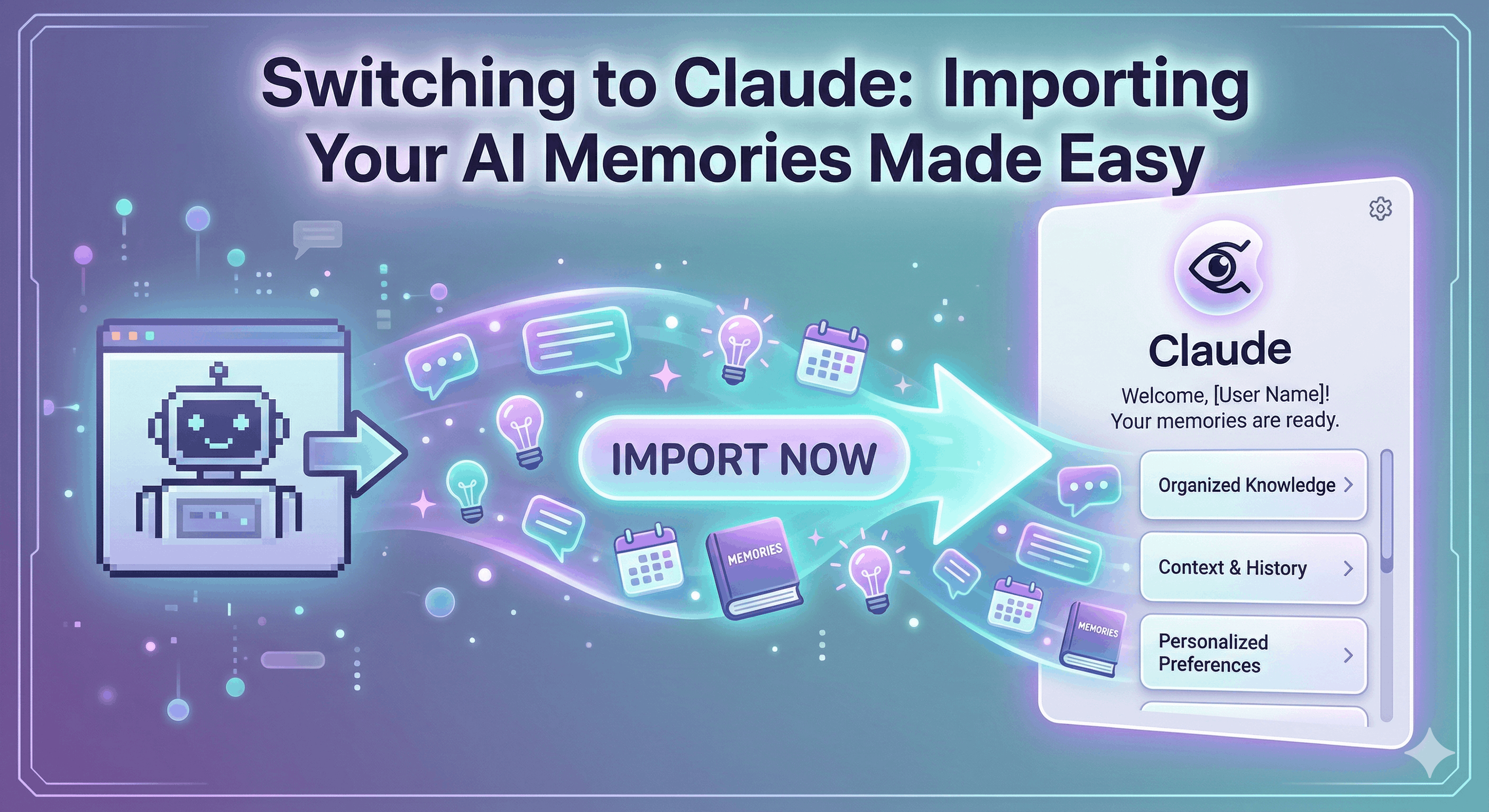
Switching to Claude: Importing Your AI Memories Made Easy
In the ever-evolving world of artificial intelligence, users often seek tools that better match their needs. Claude AI offers an intuitive platform that allows you to import your memories from other AI systems, such as ChatGPT. Transitioning can seem daunting, but this guide will walk you through the process, ensuring you don’t lose the unique personalization that makes your AI interactions special.
Who Should Use This
Anyone considering a shift to Claude AI will find this guide beneficial. Specifically:
- Casual Users: People who want an efficient AI experience without sacrificing their personalized preferences.
- Students: Learners looking to customize their study methods and preferences as they transition between platforms.
- Professionals: Business users aiming to maintain productivity by retaining critical information and practices from their previous AI.
- Tech Enthusiasts: Anyone keen on exploring the advanced features that Claude AI offers and wanting to maximize their engagement through memory imports.
Practical Use Cases
1. Students
Claude can be a powerful tool for students who need a tailored learning experience. By importing memories from previous AIs, students can seamlessly carry over their subject preferences, past study sessions, and personalized feedback. This means less downtime and more time engaging with new material while feeling in control of their learning.
2. Business Productivity
For professionals, switching to Claude means enhanced productivity. Imagine importing past project data, team communication styles, or even strategic plans. With Claude, you can hit the ground running, preserving the nuances of your work style and collaborating effectively from day one.
3. Daily Life Management
In your everyday tasks—whether grocery lists, managing appointments, or personal to-do lists—importing your memories to Claude allows for a more personalized and tailored experience. Claude can remember your preferences, making daily interactions smoother and more efficient.
Benefits of Importing Memories
- Seamless Transition: Move from one AI system to another without losing your personalized settings.
- Enhanced Personalization: Claude becomes attuned to your preferences right from the start, making interactions feel more meaningful.
- Time-Saving Reminders: Quickly access previously stored information without having to reintroduce yourself to the AI.
How to Import Memories to Claude
Follow these five simple steps to import your memories:
- Set Up Your Claude Account: Begin by creating a free or paid account on Claude. Ensure you have your account verified.
- Navigate to the Memory Import Section: Open the memory import feature found in your account settings. This area is designed specifically for transferring memories.
- Prepare to Export Memories: Log into your previous AI. Most platforms will have an option under settings or data management where you can copy the generated export instructions.
- Paste and Submit: Return to your Claude account and find the area to enter the import instructions. Paste the copied data and submit it to initiate the transfer.
- Verification: Post-import, verify that all memories and preferences have been accurately reflected in your new AI setup. This step ensures that nothing is amiss.
Actionable Checklist
To ensure a smooth import process, follow this checklist:
- Create a Claude account if you haven’t already.
- Go to the memory import section in your account settings.
- Access your previous AI service to find export instructions.
- Copy and paste these instructions back into Claude.
- Verify that all memories have been imported correctly.
Also, don’t forget to regularly check and update your AI preferences as you continue to use Claude. This will enhance your experience further.
Additional Tips for a Smooth Transition
- Backup Important Data: Before starting the transfer, it's wise to create backups of crucial information on your previous AI. This step ensures no data is lost.
- Familiarize Yourself with Claude: Spend some time exploring Claude's features and settings to make the most out of your experience after importing.
- Engage with Community: Join forums or discussion groups related to Claude AI where you can share experiences and learn from others' transitions.
- User Support: In case you run into issues during the transition, reach out to Claude’s user support for guidance.
Overall, the capability to import your memories not only simplifies the switching process but also ensures that you maintain continuity in your AI engagement. Rather than starting from scratch, you will seamlessly transition into the Claude ecosystem, equipped with all the valuable learning and interaction data that personalize your experience. For more detailed steps and resources on importing memories to Claude, check out the source.


